PDF & SyncTeX

Overview

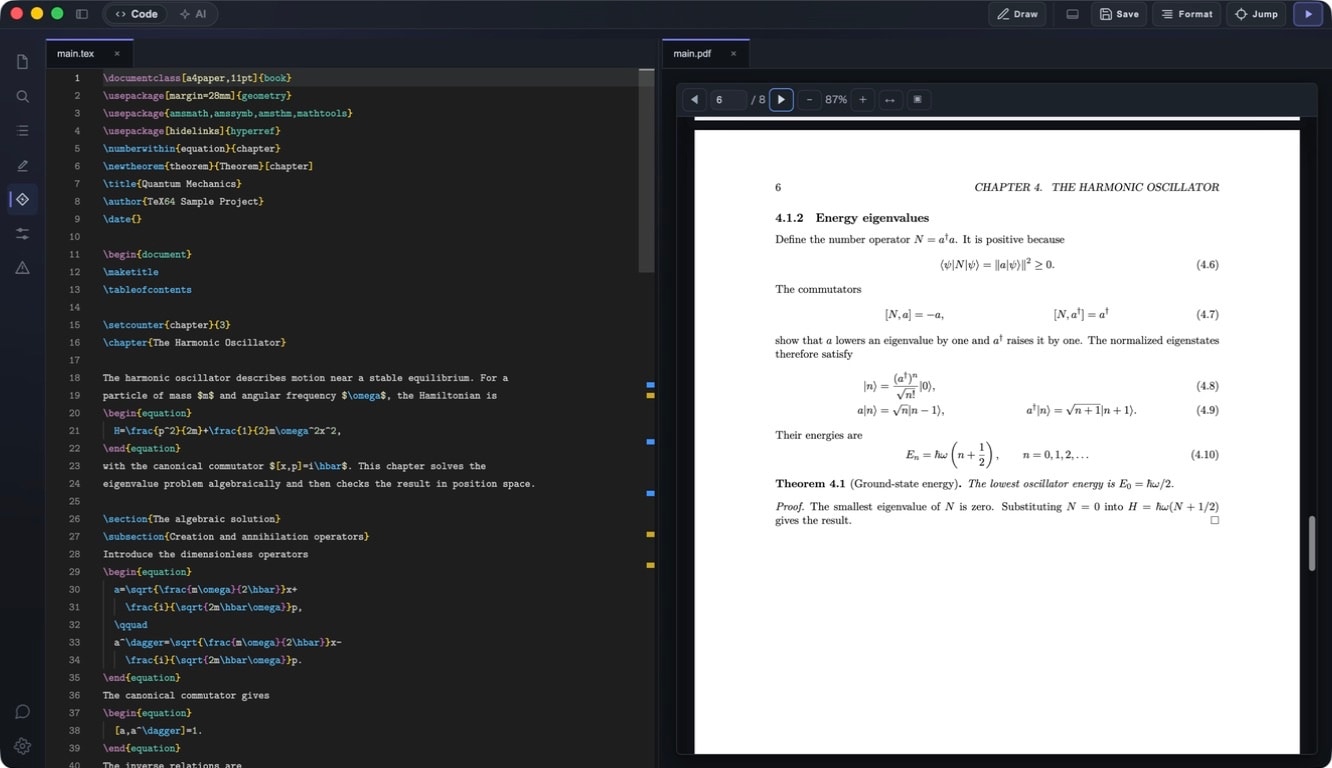
TeX64 provides integrated PDF preview with SyncTeX bidirectional navigation capabilities. As you edit your source code, the PDF preview updates in real-time, keeping the editor and PDF viewer completely synchronized.

With SyncTeX, you can instantly see where your cursor position in the source code corresponds to in the PDF, and vice versa—click on the PDF to jump directly to the source. Choose from multiple view modes that match your workflow.

PDF Preview Modes

TeX64 automatically updates the PDF when the build succeeds. Choose the viewing mode that best fits your project size and monitor setup.

Integrated Viewer (Same Window)

The PDF automatically updates when the build succeeds. Both editor and PDF are displayed integrated within the same window. This mode is ideal for single-monitor environments or compact setups. The PDF preview can be positioned directly below or next to the editor, making it convenient when switching frequently between the two.

Split View (Vertical/Horizontal)

Display editor and PDF side-by-side (vertical split) or stacked (horizontal split). Toggle between modes using Cmd+\ (Mac) or Ctrl+\ (Windows/Linux).

On wide monitors, place the editor on the left and PDF preview on the right to efficiently review source and output simultaneously. For larger font sizes or zoom levels, the horizontal split mode provides better readability.

Detached Mode (Separate Window)

Detach the PDF viewer into an independent window that opens in a separate space. This mode is particularly powerful in multi-monitor setups. Display TeX64 on your main monitor while showing the PDF in fullscreen on a secondary monitor for presentation-quality review and wider viewing angles.

Behavior on Build Failure

If a build fails, TeX64 preserves the last successfully generated PDF. Broken or partially rendered PDF files are never displayed. This allows you to reference the last successful version while fixing errors.

PDF Viewer Controls

TeX64's PDF viewer supports standard navigation operations.

Zoom Controls

  • Zoom In: Use Cmd+= (Mac) or Ctrl+= (Windows/Linux) to zoom in.
  • Zoom Out: Use Cmd+- (Mac) or Ctrl+- (Windows/Linux) to zoom out.
  • Reset Zoom: Use Cmd+0 (Mac) or Ctrl+0 (Windows/Linux) to reset zoom to default.
  • You can also zoom using mouse wheel, trackpad, or pinch gestures.

Scroll Navigation

  • Scroll through the PDF to view any content. Navigate using arrow keys, scroll wheel, or trackpad.
  • Press Space or Page Down to go to the next page, Shift+Space or Page Up for the previous page.

Page Navigation

  • Home/End: Jump to the first or last page of the document.
  • Click the page indicator at the top of the PDF viewer to jump directly to a specific page.

Auto-refresh Behavior

TeX64 continuously monitors your source code for changes. When the build succeeds, the PDF automatically updates.

On Successful Build

When the build completes successfully, TeX64 automatically reloads the PDF to display the latest content. By default, scroll position returns to the top of the document.

Scroll Position Preservation

TeX64 attempts to preserve your scroll position when the PDF updates. For minor changes, you'll continue viewing the same section. For major changes that alter the document structure, the scroll position may be reset.

Preserving on Build Failure

If the build fails, the previously successful PDF continues to be displayed. You can review error messages and make fixes before building again.

Forward SyncTeX (Source → PDF)

Forward SyncTeX instantly identifies and displays the PDF location corresponding to your cursor position in the editor. See in real-time how your source code changes reflect in the output.

Cursor Position Highlight

When you place your cursor in the editor, TeX64 highlights or displays a visual indicator of the corresponding area in the PDF. You can instantly see where any element—from small text to large sections, paragraphs, sections, and figures—appears in the output.

Real-time Updates

The highlight updates in real-time. As you move your cursor, the PDF display updates instantly. The viewer automatically scrolls to show the highlighted position, keeping your current editing location always in view.

Visual Indicator

A visual marker—such as a rectangle, background color, or icon—appears on the PDF to indicate the area corresponding to your current cursor position. This makes it crystal clear which part of your source code corresponds to which location in the PDF, even in complex documents.

Reverse SyncTeX (PDF → Source)

Reverse SyncTeX lets you click on the PDF to jump directly to the corresponding line in your source code. While reading the PDF, when you find something that needs editing, immediately access the source to make changes.

Cmd+Click to Jump

  • Mac: Hold Cmd and click on text or elements in the PDF.
  • Windows/Linux: Hold Ctrl and click on text or elements in the PDF.

Instant Navigation

Upon clicking, TeX64 brings the editor to the foreground and automatically jumps the cursor to the corresponding source line. The line number is highlighted and the cursor is positioned at the beginning of the line. For blocks spanning multiple lines (such as paragraphs or figure environments), you jump to the start of the block.

Behavior in Multi-file Projects

Reverse SyncTeX is particularly powerful in multi-file projects. Click on elements from files split using \input or \include, and the correct external file opens automatically, jumping to the corresponding line. Accurate navigation works regardless of your project structure.

Precise Positioning

Jump precision depends on the granularity of information TeX64 reads from the SyncTeX file. Typically, you jump to the correct line with paragraph-level accuracy, though some LaTeX packages may result in coarser precision (such as page-level accuracy).

Multi-file Project Support

SyncTeX works fully in multi-file LaTeX projects split using \input and \include commands. Proper root file configuration and accurate paths are essential.

Understanding \input and \include

  • \\input: Directly includes the specified file at the current location without a page break.
  • \\include: Includes the specified file starting on a new page. Can be individually excluded with \excludeonly.

Both methods are fully supported by SyncTeX, which accurately tracks correspondence between files and enables bidirectional navigation.

Root File Importance

TeX64 automatically attempts to detect your project's root file (the main file containing \begin{document}). With multiple LaTeX files, you may need to explicitly specify which file should be treated as the root.

If the root file is not correctly set, SyncTeX will not function. Set it via the menu ("Set Root File") or in your project settings.

Cross-file Jumping

Both Forward and Reverse SyncTeX work seamlessly across multiple files. Regardless of which file is active in the editor, your cursor position accurately reflects in the corresponding PDF location. Similarly, when jumping from the PDF, the correct related file opens automatically.

SyncTeX Requirements

SyncTeX requires several components to function properly.

synctex Binary

  • The synctex command-line tool must be installed.
  • If you have MacTeX installed, synctex is automatically included.
  • TeX Live installations also include synctex.
  • To verify installation: Run "which synctex" in the terminal. If a path is displayed, synctex is installed.

.synctex.gz File Generation

  • latexmk must automatically generate .synctex.gz files during compilation.
  • TeX64's build process enables .synctex.gz generation by default.
  • After a successful build, verify that a .synctex.gz file exists in your project directory.

latexmk Configuration

  • Configure SyncTeX generation options in your .latexmkrc or latexmkrc file.
  • Recommended: $pdf_mode = 1; (pdflatex) or $pdf_mode = 4; (lualatex/xelatex)

TeX64 Runtime Verification

In TeX64's Settings > Runtime menu, you can verify your available TeX environment. A green checkmark (✓) indicates that synctex is properly installed.

PDF Text Search

You can search for text within the PDF viewer. Open the search box with Cmd+F (Mac) or Ctrl+F (Windows/Linux).

Search Features

  • Type a search term to automatically highlight all matches in the PDF.
  • Navigate results: Use up/down arrow buttons or Enter key to move to next/previous matches.
  • Match count: The search box displays the total number of matches found.

PDF Annotations and Editing

TeX64's PDF viewer is a read-only preview. It does not support annotations, highlighting, or handwriting directly in the PDF.

If you need to add annotations to the PDF, use a separate PDF editor application such as Preview.app, Adobe Acrobat, or PDFExpert. TeX64's PDF viewer is optimized for fast preview for review, reference, and navigation purposes.

Continuous Preview Workflow

TeX64's PDF preview is tightly integrated with the auto-build system. Enable auto-build to automatically compile and update the PDF each time you save your source code.

Live Preview Workflow

  1. Open a LaTeX file in TeX64 and edit code in the editor.
  2. Save the file (Cmd+S / Ctrl+S).
  3. TeX64 automatically starts compilation (if auto-build is enabled).
  4. Once compilation finishes, the PDF instantly updates.
  5. Click on the PDF (Cmd+Click) to jump to source, or move your source cursor to highlight the corresponding location in the PDF.

Enabling Auto-build

Enable auto-build from TeX64's settings menu. Once enabled, compilation automatically starts about 0.5 seconds after file changes are detected.

Troubleshooting

Common issues with SyncTeX and PDF preview, and how to resolve them.

SyncTeX Not Working

  • Verification 1: synctex Installation: Run "which synctex" in terminal to verify synctex is installed. If no output appears, reinstall your TeX environment.
  • Verification 2: TeX64 Runtime Check: Check TeX64's Settings > Runtime for a green checkmark.
  • Verification 3: Root File Setting: For multi-file projects, verify the root file is correctly set.

.synctex.gz Not Found

  • Rebuild your project (Cmd+B or click the build button).
  • After a successful build, verify that .synctex.gz exists in your project directory.
  • If the file is not generated, check your latexmk configuration.

Inaccurate Jumps

  • Some LaTeX packages (tikz, pgfplot, etc.) may interfere with source mapping.
  • Heavy macro usage can complicate source-to-output mapping, reducing jump accuracy.
  • In such cases, use both Forward and Reverse SyncTeX interactions to identify rough locations.

Multi-file Project Issues

  • Root file not set: Use TeX64's menu to "Set Root File" and select the main file containing \begin{document}.
  • Path specification error: Verify that paths in \input and \include commands are accurate. For relative paths, ensure they are correct relative to the root file.
  • If external files don't open, check path separators (forward slash on Mac, backslash on Windows).

PDF Not Updating

  • Check the build output panel for errors. The PDF won't update if the build fails.
  • Verify that auto-build is enabled. Try building manually (Cmd+B).
  • If the build succeeds but the PDF doesn't update, try restarting TeX64.

General Fixes

  • Rebuild project: Use "Clean Build" or "Rebuild" from the menu.
  • Restart TeX64: Close and reopen the application.
  • Check TeX environment: Verify TeX/LaTeX installation status in Settings > Runtime.

Performance Optimization

For large PDF documents or resource-intensive LaTeX files, TeX64 can be optimized for better performance.

Handling Large PDFs

  • TeX64 uses a per-page rendering strategy to efficiently handle large PDFs.
  • Only visible pages are rendered: Off-screen pages are not loaded into memory.
  • Lazy loading: Rendering progresses as you scroll through pages.

Rendering Optimization

  • GPU acceleration: On supported systems, GPU is used to accelerate rendering.
  • Caching: Previously rendered pages are cached, speeding up navigation.
  • Adaptive quality: Rendering quality automatically adjusts based on zoom level and memory usage.

Reducing Compilation Time

  • Incremental compilation: latexmk recompiles only what's necessary.
  • Draft mode: Use draft mode in \documentclass options to simplify image processing.
  • Remove unused packages: Eliminating unused \usepackage commands reduces compile time.

If you have questions or need support, visit the support page.