Build & Compilation
Build System Overview
TeX64 uses the latexmk engine to compile your LaTeX documents. latexmk automatically manages the intermediate passes needed to build complex documents with bibliographies, indexes, and cross-references.
All builds run locally on your machine—no internet connection required. TeX64 works completely offline, protecting your security and privacy. The compilation process is fast and transparent.
How to Build
Starting a build is straightforward. You have several options:
- Keyboard Shortcut — Press Cmd+B (macOS) or Ctrl+B (Windows/Linux)
- Clean Build — Press Cmd+Shift+B (macOS) or Ctrl+Shift+B (Windows/Linux) to remove intermediate files first
- Toolbar Button — Click the build button (play icon) in the toolbar
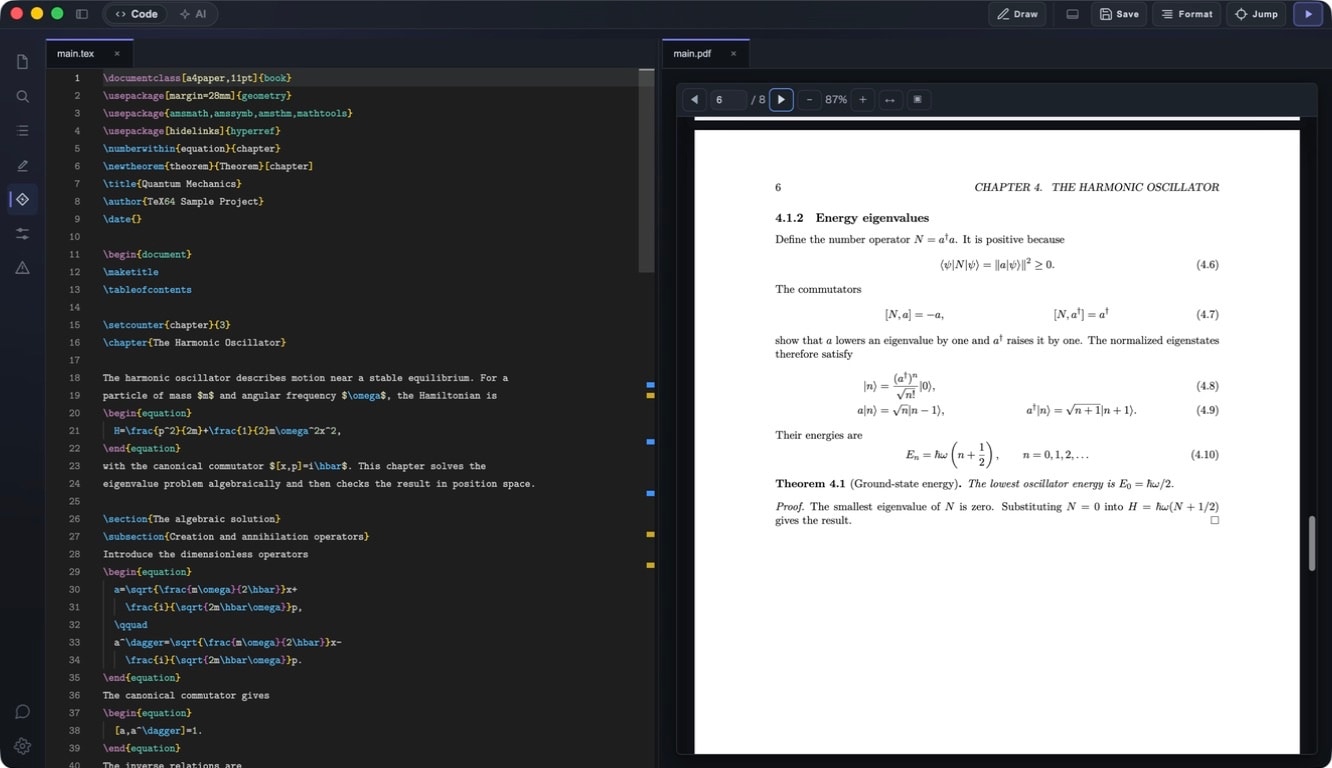
Once the build completes successfully, the PDF preview updates automatically.
Build Process
During a build, latexmk automatically manages:
- Multiple Compilation Passes — LaTeX typically runs 2-3 times to resolve cross-references
- BibTeX/Biber — Automatically processes bibliography entries
- Index Generation — Runs makeindex or xindy for index entries
- Cross-References — Ensures ef, cite, pageref and similar commands resolve correctly
- Change Detection — Skips rebuilding if files haven't changed, saving time
Build output appears in the log panel as it compiles. You can watch the real-time progress and see exactly what latexmk is doing.
Root File Selection
For projects with multiple .tex files, TeX64 identifies which file is your root (main) document. It does this by scanning for the \documentclass command, which only appears in the root file.
In most cases, automatic detection works perfectly. However, if you have a complex project structure with multiple \documentclass declarations, you can manually override the root file in the project settings.
TeX64 always compiles starting from the root file. All other files should be included via \input or \include commands in the root file.
Build Profiles
TeX64 lets you configure multiple build profiles, each with its own LaTeX engine and custom settings. This is useful when you need to test your document with different engines.
Profiles are created and managed in your project settings. Each profile has a name, engine selection, and optional custom flags.
Profiles are useful for scenarios like:
- Testing a document with different engines (e.g., pdflatex vs xelatex)
- Maintaining separate build configurations for production and draft modes
- Using custom engine options for presentations or special formats
Supported Engines
TeX64 supports these major LaTeX engines:
pdflatex
pdflatex is the most established and widely used engine. It's compatible with nearly all LaTeX packages and templates, making it ideal for standard documents. It directly generates PDF output and is fast.
Best for: Academic papers, technical reports, books, and most standard documents. If you're unsure which engine to use, pdflatex is the safe choice.
xelatex
xelatex provides native Unicode and system font support, making it ideal for non-Latin scripts like Chinese, Japanese, Arabic, and others. You can use any system font installed on your machine.
Best for: Multilingual documents, non-Latin scripts, and any project requiring system fonts. If you're working with Japanese, Chinese, or other complex writing systems, xelatex is the right choice.
lualatex
lualatex is a modern engine that integrates Lua scripting capabilities with advanced font processing. It natively supports OpenType fonts and allows sophisticated typographic control.
Best for: Projects requiring advanced scripting, complex typography, or modern font technologies. Combines the benefits of xelatex with Lua extensibility.
Custom latexmk Flags
Advanced users can add custom latexmk flags to fine-tune build behavior. These flags are configured in your project settings.
Common flags include:
-shell-escape— Enables \write18 to run external programs from LaTeX (required for packages like Minted)-interaction=nonstopmode— Continues compilation even when errors occur (useful for checking multiple issues at once)-output-directory=— Specifies a custom output directory for PDF and intermediate files-pdf— Forces PDF output mode
Compile Log
The compile log displays the full output from the LaTeX compiler and latexmk. TeX64 parses this output and highlights errors and warnings with color-coding.
- Errors — Highlighted in red. These prevent successful compilation.
- Warnings — Highlighted in yellow or orange. These don't prevent compilation but may affect output quality.
- Messages — Shown in gray. These are informational messages about the build process.
Click on any error or warning in the log to jump directly to the problematic line in your source code. The file and line number are highlighted, making debugging fast.
Error Parsing
TeX64 automatically parses LaTeX errors to identify the correct file and line number.
Common error patterns include:
- Undefined control sequence — A command is not defined or contains a typo
- Missing \endcsname inserted — Usually caused by mismatched braces or parentheses
- File not found — A file referenced via \input or \include doesn't exist
- Package not found — A package specified with \usepackage is not installed
- Runaway argument — Usually caused by an unclosed brace in a command argument
LaTeX often produces cascading errors, so finding the first error is crucial. Fixing the first error in the log often resolves many subsequent ones.
AI-Assisted Debugging
TeX64's AI assistant can analyze your compile log and suggest fixes for errors. This is especially helpful for cryptic LaTeX error messages.
To use AI debugging after a failed build:
- Click the "Ask AI" button in the compile log panel
- TeX64 sends the complete error context to the AI
- The AI suggests possible causes and fix methods
AI suggestions are a helpful starting point, though they're not always correct. They're especially useful if you don't have deep TeX expertise.
Environment Diagnostics
When TeX64 starts up, it checks that all required tools are available on your system. It verifies:
- latexmk — The LaTeX build automation engine (required)
- TeX distribution — TeX Live, MacTeX, MiKTeX or other TeX distribution (required)
- latexindent — Code formatting tool (optional but recommended)
- synctex — Source-to-PDF synchronization (optional but recommended)
If any required tool is missing, TeX64 warns you and provides guidance on how to install it.
Clean Build
A clean build removes all intermediate files and then rebuilds the entire document from scratch.
A clean build removes:
.aux— Auxiliary files (cross-references, etc.).log— Build logs.toc— Table of contents files.lof, .lot— List of figures/tables.bbl, .blg— Bibliography files.fdb_latexmk— latexmk file dependency database
Use a clean build when:
- The build seems stuck in a strange state and normal builds don't fix it
- After major structural changes (e.g., adding or removing chapters)
- When you suspect caching issues with cross-references or numbering
- After changing project settings or engine options
Incremental Compilation
By default, TeX64 uses incremental compilation. latexmk tracks which files have changed and only re-runs the necessary compilation passes.
This dramatically speeds up builds after small changes. latexmk internally tracks dependencies and only performs a full rebuild when truly necessary.
If incremental compilation seems to miss some changes, use a clean build to force a complete rebuild.
Build Troubleshooting
If your build fails, check these common issues:
"Root File Not Found"
- Verify the root file is correct. Multi-file projects must compile from the file containing \documentclass.
- Ensure the root file still exists and hasn't been deleted or moved.
Cryptic Error Messages
- Check the compile log for the actual error messages. Scroll to the first error, not the last—fixing the first problem often resolves cascading errors.
- Use TeX64's AI debugging to analyze complex error messages.
Missing Package Errors
- Ensure all required packages are loaded with \usepackage.
- TeX64 will tell you which package is missing. Follow the instructions in the error message to install it.
- On macOS with MacTeX installed, most packages are automatically available.
Memory or Resource Issues
- Documents with many large images or complex graphics may run out of memory.
- Try compressing images or reducing their size to decrease resource usage.
- Alternatively, split large documents into smaller parts and compile separately.
Slow Builds
- Ensure incremental compilation is working. After large changes, a clean build may be needed.
- Complex graphics and advanced layouts can increase build time significantly.
Performance Tips
Here are strategies to reduce build time:
- Draft Mode — Add the draft option to \documentclass to skip image processing and compile layout only
- Selective Compilation — Use \includeonly to compile only specific chapters
- Image Optimization — Convert large bitmap images to PDF or reduce their size
- Font Selection — Computer Modern fonts (default) compile faster than complex system fonts
- TikZ/PGFPlots Optimization — Pre-compile complex diagrams to PDF and include them as images
Combining these techniques can significantly reduce build time for large projects.