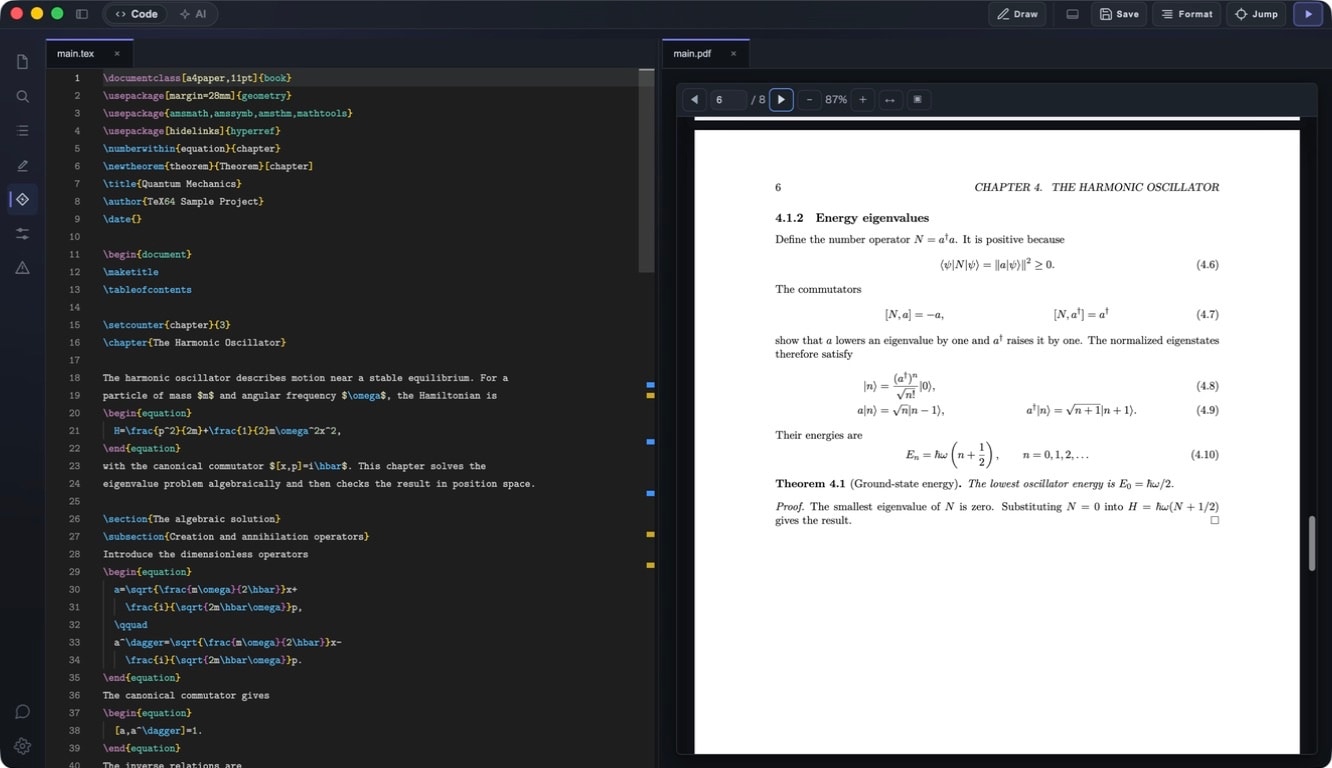
Editor & Workspace

TeX64's editor provides a powerful workspace environment designed for efficient management and editing of LaTeX projects. With simultaneous multi-file editing, project-wide search, intuitive navigation, and multi-monitor support, it delivers a professional writing experience.

File Tree

The File Tree panel displays all files and directories within your workspace folder in a hierarchical structure. Quickly access any file in your project.

How to Use

  • Click a filename to open it in the editor
  • Click directories to expand or collapse them
  • Drag and drop files to the tab area to open them
  • Right-click for context menu options (delete, rename, etc.)
💡 Keep frequently accessed files open in tabs for quick switching.

Tabs

The tab system lets you keep multiple files open simultaneously and switch between them instantly. Each tab represents an open file; click any tab to switch to it.

How to Use

  • Click a tab to switch between open files
  • Click the "✕" button on a tab to close that file
  • Drag tabs to reorder them
  • Tab appearance indicates file status (unsaved changes highlighted)
💡 Keep main.tex and preamble.tex open simultaneously to manage settings while editing content.

Split View

Split View lets you divide the editor vertically or horizontally to display and edit two files side by side. Perfect for working on different sections simultaneously or comparing reference materials with your main file.

How to Use

  • Select "Split Vertically" or "Split Horizontally" from the editor menu
  • Open different files in each pane
  • Drag the divider between panes to resize them
  • Select "Close Split" from the menu to unsplit
💡 Split View is ideal for adjusting figure placement or cross-referencing between sections.

Separate PDF Window

Detach the PDF viewer into its own separate window, independent from the main editor. On multi-monitor setups, display the editor on one monitor and the PDF on another. The PDF remains synchronized with your edits via SyncTeX.

How to Use

  • Click the "Detach Window" button (usually an arrow icon) in the top-right corner of the PDF viewer
  • The PDF opens in a new independent window that you can position anywhere
  • The detached PDF updates automatically as you edit
  • Close the window or select "Reattach PDF" to bring it back into the main window
💡 With a multi-monitor setup, edit source code on one monitor while viewing real-time PDF preview on another.

Outline Panel

The Outline Panel displays your document's structure, showing chapters, sections, figures, tables, labels, citations, and TODOs in a hierarchical view. Click any element to jump directly to it in the editor.

How to Use

  • Open the Outline Panel from the editor sidebar
  • Scan the panel to understand your document's overall structure
  • Click any element to jump to that location in the editor
  • Expand or collapse sections to focus on specific levels
  • The outline updates automatically as you type
💡 For large documents (dissertations, books), use the Outline Panel to maintain structural coherence while working.

Project Search

Project Search lets you search across all files in your workspace. You can also perform find-and-replace operations across multiple files at once, making it easy to update definitions and commands in large projects.

How to Use

  • Open "Project Search" from the menu or keyboard shortcut (e.g., Ctrl+Shift+F)
  • Enter your search term to see all matches across files with line numbers
  • Click any result to jump to that file and location
  • Enter replacement text and click "Replace All" to replace across the entire project
  • Support for regular expression patterns (when enabled)

Example

To rename all instances of \mycommand to \mynewcommand:

  • Enter "\mycommand" in the search field
  • Enter "\mynewcommand" in the replace field
  • Click "Replace All" to update all instances
💡 Always preview results before replacing to ensure accuracy.

File Rename

TeX64's File Rename feature does more than just change the filename. It automatically updates all references to that file across your project (\input, \include, \graphicspath, etc.). This ensures your entire project remains consistent after renaming.

How to Use

  • Right-click the file in the File Tree
  • Select "Rename" from the context menu
  • Enter the new filename
  • Press Enter to rename and automatically update all references

Example

When renaming chapters/chapter1.tex to chapters/introduction.tex, all \input{chapters/chapter1} statements are automatically updated to \input{chapters/introduction}.

💡 This feature eliminates the tedious manual updating of file references after renaming.

Workspace Best Practices

Organize File Structure

Divide your project into subfolders (chapters/, images/, tables/) to improve visibility and maintainability in the File Tree.

Edit Multiple Files Simultaneously

Use Split View to edit preamble.tex and main.tex side-by-side, improving your editing workflow.

Leverage Multi-Monitor Setups

Display the PDF in a separate window on another monitor to see compilation results in real-time while editing.

Use Outline for Structure

For large documents, keep the Outline Panel visible to maintain awareness of your overall structure.

Streamline with Project Search

Use Project Search and Replace to efficiently update command definitions and labels across your entire project.