Blocks / OCR
Overview
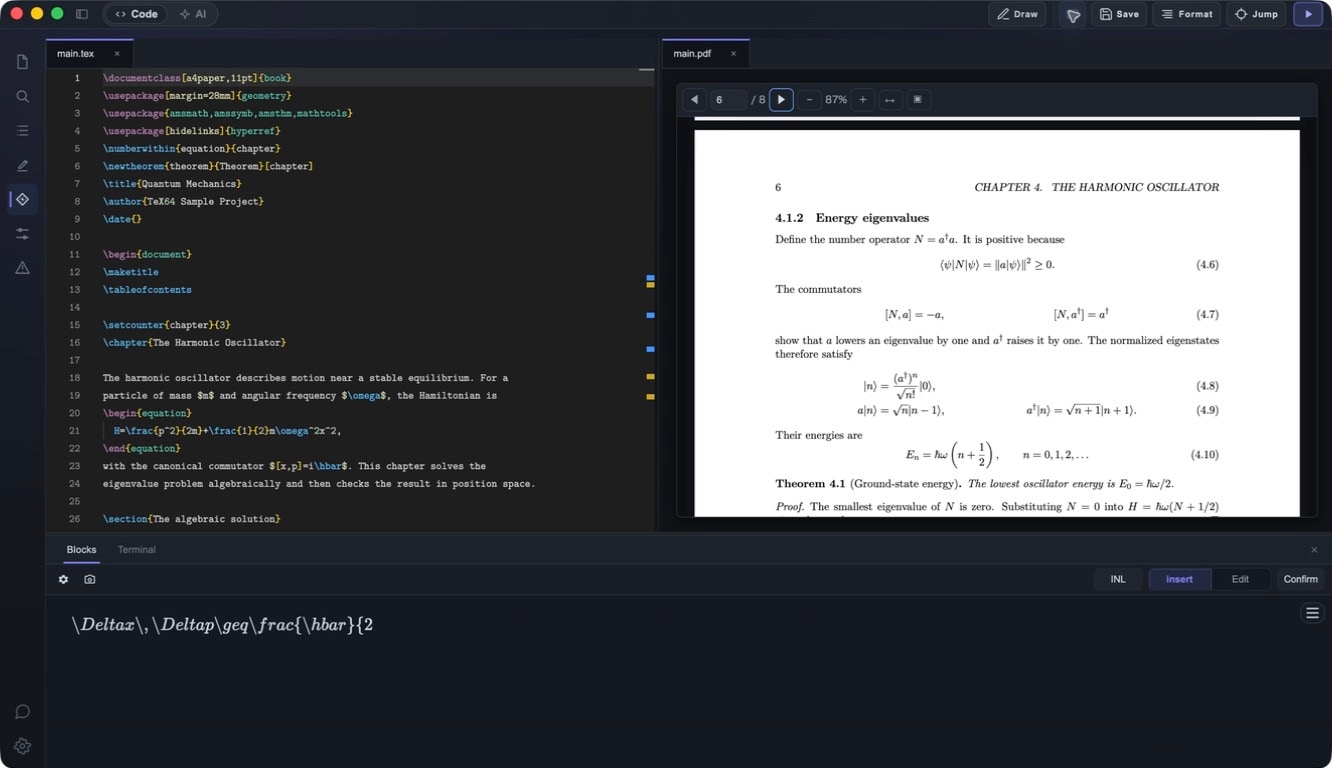
TeX64 has two major features: Blocks (visual equation editor) and OCR (image-to-LaTeX conversion). Edit formulas visually as blocks and automatically generate LaTeX from screenshots. Create sophisticated math documents without memorizing LaTeX syntax.
Blocks (Visual Math Editor)
What are Blocks?
Blocks is a TeX64 feature for editing LaTeX math environments (equation, align, gather, etc.) visually using MathLive, an interactive equation builder. TeX64 automatically detects and launches blocks for math environments. Select symbols and structures from a palette while watching real-time rendered preview. Generated LaTeX is automatically inserted back into your source.
How to Open Blocks
- Place cursor in a math environment in the editor, then right-click and select "Edit in Block"
- Select from menu: Math > Block Editor
- Keyboard shortcut: Cmd+Shift+E
Supported Math Environments
equation / equation*align / align*gather / gather*multline / multline*splitcasesmatrix / pmatrix / bmatrix / vmatrix- Inline math ($...$, \(...\))
Symbol Palette
When the Block Editor opens, MathLive displays a symbol palette with these categories:
- Greek letters (α, β, γ, δ, ε, ...)
- Operators (+, -, ×, ÷, ±, ∓, ...)
- Relations (=, ≠, <, >, ≤, ≥, ≈, ∼, ...)
- Arrows (→, ←, ↔, ⇒, ⇐, ⇔, ...)
- Set symbols (∈, ∉, ⊂, ⊃, ∩, ∪, ...)
- Structures (fractions, roots, superscripts, subscripts, matrices, integrals, sums, limits)
- Accents (hat, bar, vec, dot, tilde, ...)
Real-time Preview
As you input, you see the rendered equation in real-time. Build formulas by selecting from the palette without needing to memorize LaTeX syntax. When complete, the LaTeX code is automatically inserted into your source.
OCR (Image to LaTeX)
What is OCR?
OCR converts math formulas from screenshots, handwritten notes, PDFs, and other images directly into LaTeX code. Powered by cloud-based AI for high-precision conversion.
How to Use OCR
- Select from menu: Math > OCR
- Select a screen capture region (crop any area of the screen)
- AI analyzes the image and generates LaTeX code
- Results are inserted directly into the editor
Supported Input Formats
- Handwritten formulas (notes, whiteboards)
- Formulas in PDFs
- Math formula screenshots from web pages
- Photos of formulas from textbooks or papers
Requirements
- Internet connection required (cloud AI processing)
- TeX64 Basic or higher plan (AI feature)
- macOS Screen Recording permission (may be required for screen capture)
Setup: System Settings > Privacy and Security > Screen Recording > enable TeX64
Tips for Better OCR Results
- High-contrast images (dark text on light background) are most accurate
- Cropping to just the equation improves accuracy
- For handwritten formulas, write as neatly as possible
- Complex formulas can be split and processed separately for better accuracy
- Always review and correct results before using
Blocks vs. OCR
- Blocks: Use when creating new formulas from scratch or if unfamiliar with LaTeX syntax
- OCR: Use when digitizing handwritten or existing PDF formulas
For more information, see documentation or support .